Bootstrap framework
Know more about common key elements used when designing with Bootstrap at OCASI
On this page:
1. About Bootstrap
Bootstrap is a prebuilt HTML, CSS, and JS library used by designers and web developers. You can design and customize responsive mobile-first sites projects faster by having ready-made code snippets and predefined CSS classnames. To implement work, just copy a few lines of HTML code, e.g.
Visit Bootstrap website:
Bootstrap at OCASI
The following websites are using Bootstrap 3:
- NewYouth.ca (v3.4.0)
- NouveauxJeunes.ca (v3.4.0)
- PositiveSpaces.ca (v3.3.5)
- SettlementAtWork.Org (v3.3.5)
- SecteurEtablissement.Org (v3.3.5)
The websites below are working with Bootstrap 4:
- Jobreadiness.Settlement.Org (v4.0.0)
What is different from Bootstrap v3 to v4?
Some of the main features updated from Bootstrap 3 to 4 are:
- Added flexbox based grid, including flex utilities: direction, justify content, align items, self-align, auto margins, wrap, order columns
- Grid system viewports with a 5 tier grid system
- Font size and units from
px(14px) torem(16px) - Glyphicons are not supported for v4
- More pre-defined styles for buttons
- Option to display navs as inline
- Pre-built website templates
- Better responsive tables
2. Layout
Bootstrap features components and options for laying out your Bootstrap project, including a grid system, auto-layout columns, responsive classes, horizontal and vertical alignment options, and reordering and offsetting classes for columns.
Containers
Containers are the most basic layout element in Bootstrap and are required when using the default grid system, from responsive fixed-width (.container) to fluid-width (.container-fluid).
Grid system
You can work with mobile-first flexbox grid to build responsive layouts of a 12 column system. It uses a series of containers, rows, and columns to layout and align content.
Margin and padding utilities
Bootstrap has builtin classes for responsive margins and paddings to control how elements and components are spaced and sized (e.g, .mt-4 for margin-top level 4).
Flexbox
Bootstrap v4 and most components are built with flexbox (not available for v3).
To use it, you need to add display: flex to an element using the class .d-flex or one of the responsive variants (e.g., .d-sm-flex).
Key flexbox utilities
3. Typography
Bootstrap typography (v4) includes global settings, headings, body text, text utilities, lists, and more.
How to use fonts at OCASI
Import fonts
As an example, the following piece of code shows a selected family obtained from Google Fonts (IBM Plex Sans)
<style>
@import url('https://fonts.googleapis.com/css2?family=IBM+Plex+Sans:wght@400;600;700&display=swap');
</style>
Font family base and variables
$font-family-base: 'IBM Plex Sans', sans-serif;

--font-family-sans-serif: 'IBM Plexs Sans' , sans;
--font-family-monospace: 'IBM Plexs Mono' , monospace;
Font-family CSS rules
font-family: 'IBM Plex Sans', sans-serif;
font-family: 'IBM Plex Mono', monospace;
Font sizes & weights (CSS)
body { font-size: 1rem;}

.sidebar, footer { font-size: .9em;}

body { font-weight: 400;}
.h1, .h2, .h3, .h4, .h5, .h6,
h1, h2, h3, h4, h5, h6 { font-weight: 600;}
4. Colours
Bootstrap works with a handful of colour utility classes. Includes support for styling links with hover states and background gradients too.
The colours can be applied to one of:
text-{color}is for contextual text coloursbg-{color}is for background coloursbtn-{color}is adding colours to buttons, including its variantbtn-outline-{color}for border coloursbadge-{color}is for badges
There, {color} for Bootstrap v4 can include:
- branded colours:
*-primaryand*-secondary - alerts:
*-success(green),*-danger(red),*-warning(yellow),*-info(blue) - greys:
*-light,*-dark,*-white,*-muted - custom branded colours,
*-green, e.g.
Note: *-white and *-muted classes do not work for styling links.
Colour variables
Bootstrap includes variables for theme colours in its compiled files. For example, some sample usages for Bootstrap v4 are:
- CSS variables are located in the
_root.scssfile - Saas variables can are located in the
scss/_variables.scssfile
Brand colours (CSS variables)
--primary: #0E4633;

--secondary: #62BF63;

--green: #135D44;
Grays (CSS variables)
--gray: #DFE1E0;

--gray-dark: #646E6B;

--gray-darker: #34423D;

--gray-light: #C0C5C3;

--gray-lighter: #F9F9F9;

--dark: #34423D;

--light: #F9F9F9;

--black: #020907;

--white: #FFF;
Alerts (CSS variables)
--success: #0D8935;

--info: #0074C1;

--warning: #F9A702;

--danger: #DD1A44;
Text colours (Saas variables)
$body-color: #34423D;

$headings-color: #34423D;
5. Buttons
Bootstrap includes predefined button styles, each serving a semantic purpose.
<button type="button" class="btn btn-primary">Primary</button>
<button type="button" class="btn btn-outline-secondary">Secondary</button>Button tags
The .btn classes are can be used with:
<button>elements<input>elements (some browsers may apply a different rendering, Safari, e.g.)<a>tags: use therole="button"when using<a>elements that are used to trigger in-page functionality (like collapsing content) rather than linking to pages.
Button sizes
You can use the following button classes to make the buttons larger or smaller.
- Add
.btn-lgto create larger buttons - Add
.btn-smfor additional smaller sizes
Button groups
You can wrap a series of buttons with .btn and .btn-group. The button group feature is useful for:
- menus
- topbars
- forms
- pagination navbars
- nesting elements
🤔 🤔 🤔
For assistive technologies (such as screen readers), ensure correct role and provide a label. For button groups, this would berole="group", while toolbars should have arole="toolbar". In addition, groups and toolbars should be given an explicit label. You will usearia-labeloraria-labelledby.
6. Navigation
Base nav component
The base .nav component is built with flexbox and provides a strong foundation for building all types of navigation components.
<nav class="nav">
  <a class="nav-link active" href="#">Active</a>
  <a class="nav-link" href="#">Link</a>
  <a class="nav-link" href="#">Link</a>
  <a class="nav-link disabled" href="#">Disabled</a>
</nav>
Note: The base .nav component does not include any .active state, it needs custom styles to be created.
To customize the alignment of the navbar or responsive nav variations, you can use a series flexbox utilities
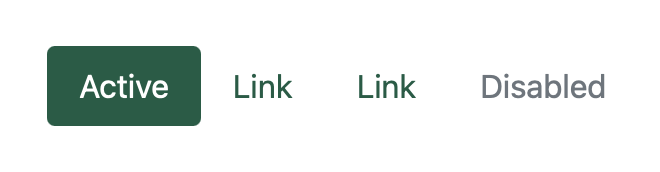
Pills
Pills are components placed in pages to speed up browsing.
To work with pills, use .nav-pills instead of the basic nav.
Navbar header
The navbar is a responsive navigation header. It includes support for branding, navigation, and support for with the collapse plugin.
Navbars require a wrapping .navbar with .navbar-expand{-sm|-md|-lg|-xl} for responsive collapsing and colour scheme classes
Navbars come with built-in support for a handful of sub-components:
.navbar-brandfor your program or project name.navbar-navfor a full-height and lightweight navigation (including support for dropdowns).navbar-togglerfor use with the collapse plugin and other navigation toggling behaviours.form-inlinefor any form controls and actions.navbar-textfor adding vertically centred strings of text.collapse.navbar-collapsefor grouping and hiding navbar contents by a parent breakpoint
🤔 🤔 🤔
Regarding accessibility, if you are using navs to provide a navigation bar, be sure to add arole="navigation"to a more generic element such as a<div>, or the most logical parent container of the<ul>, or wrap a<nav>element around the whole navigation.